
Hardware
Based on the makers’ specs and my own testing where I say so.
How to set up a headset on PC
Plug the headset into the jack or the dongle you will play on, then set that same device as the Windows output and the input.
Updated 11 min readYuval Eizik
- pc
- headset
This article has affiliate links. If you buy through them, I may earn a small commission at no cost to you. Prices move fast, so check the store for today's price before you buy.
Read the disclosure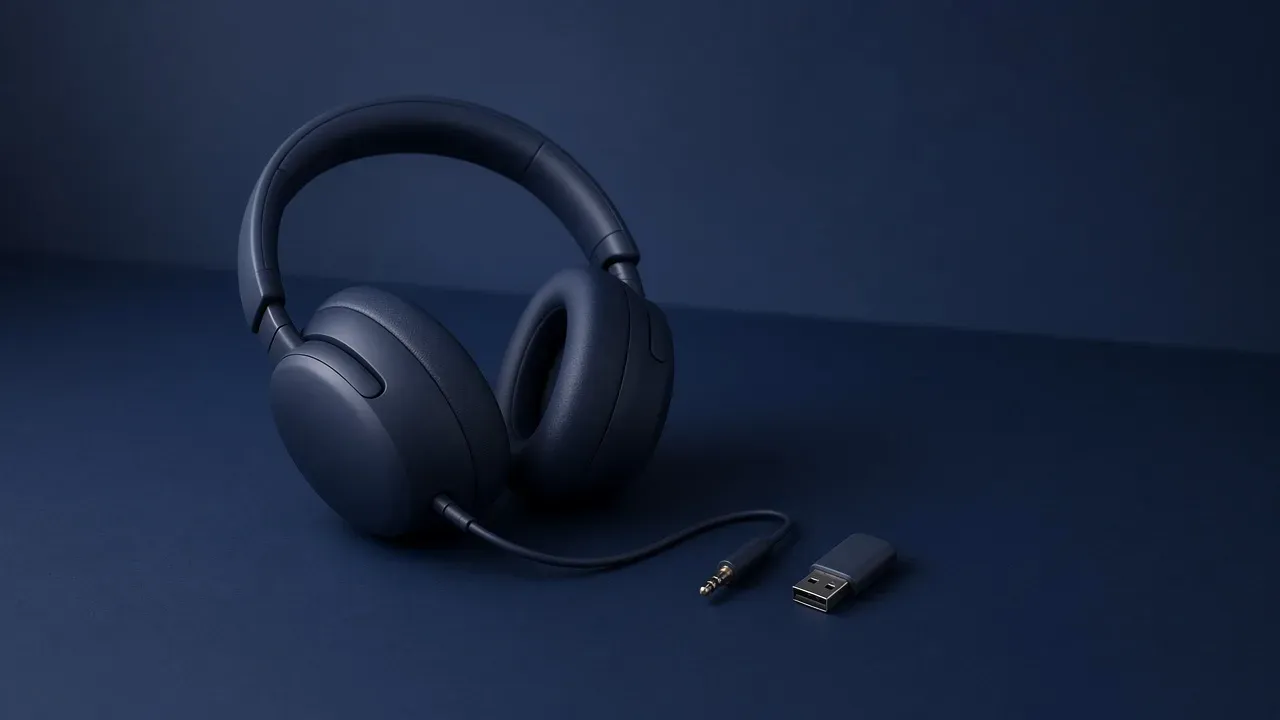
On this page
As an Amazon Associate I earn from qualifying purchases. I earn a small commission from Amazon links, at no cost to you. See disclosure.
Mic not picking up, or game audio coming out of the speakers? Don’t worry, your headset probably isn’t broken. A headset on a PC is set up when two things match. The plug or the dongle is the one you play on, and Windows is using that same device for the game and for your voice. Until both are true, a silent mic or a game on the speakers is the wrong path, not a broken headset.
I hear Overwatch and WoW in a headset. Picking the headset itself is covered in the best gaming headset. This guide is the PC side: getting Windows to use it. Once Windows is recording the right device, where the boom sits is the next check. More headset guides.
Headsets worth a look
- Wired, USB sound card in the box: HyperX Cloud III. Official US $99.99 on the HyperX Cloud III collection. 3.5 mm plus USB-C plus USB-A. HyperX’s quick start: right-click the speaker icon, open Sound settings, open the Sound control panel, and set HyperX Cloud III as the default playback device and the default recording device. NGENUITY is the extra app, not the first click. Amazon search for Cloud III
- 2.4 GHz dongle plus Bluetooth plus a cable: Logitech G PRO X 2 LIGHTSPEED. Official US $229.99 on Logitech G. Official quick start: insert the mic boom, plug the LIGHTSPEED adapter into a USB port, power the headset on, then open Windows sound settings and confirm Speakers (PRO X 2 LIGHTSPEED) as output and Microphone (PRO X 2 LIGHTSPEED) as input. G HUB is marked optional. The USB-C cable in that guide is charging only. Audio will not play over it. Amazon search for PRO X 2 LIGHTSPEED
- Dongle and Bluetooth as two radios: SteelSeries Arctis Nova 7 Wireless Gen 2. Official $199.99 on the SteelSeries announcement. The product information guide: the headset and dongle come paired. Plug the USB-C multi-platform dongle into the PC, hold the power button for one second, and the dongle LED brightens when it is connected. Bluetooth is a separate hold on the Bluetooth button. SteelSeries GG is required on PC if you want ChatMix. Amazon search for Arctis Nova 7 Gen 2
The short version: the plug or dongle you play on has to be the Windows output and the Windows input. Software is later.
What to check first
Plug into the jack or the dongle you will actually play on. Then set that same device as the output and the input. A silent mic is usually the wrong hole or the wrong device.
- Do this
- Set both devices
Plug the cable in, then open Settings, System, Sound. Choose the headset as the output and as the input. If the PC asks what you plugged in, choose headset.
Change one thing, then listen. A test tone in Sound, or one round you know. If you change the plug, the input, and a brand app in the same minute, you will not know which one did the work.
| Cable | USB dongle | Bluetooth | |
|---|---|---|---|
| Game audio | The headset jack | The dongle in the sound list | The stereo headphones entry |
| The mic | That same plug, in a headset jack | That same dongle | The hands-free entry, which can thin the game |
| First step | Plug in, then set output and input | Select the dongle, not Bluetooth | Pair it, then leave the game on the stereo entry |
| A silent mic | The wrong hole, or the wrong input | The input is not the dongle | The mic profile, or no dongle at all |
| Maker extra | USB adapter if the jack ignores the mic | G HUB / NGENUITY / GG after Windows | Phone link. Play on the dongle if you have one |
The plug
A single round plug carries the game and the mic only when the hole is a headset jack. A headphone-only hole plays sound and leaves the mic pin unused. Two holes on the PC are the split: one for the ears, one for the mic. A listing that draws two plugs is aimed at that split. A listing that draws one plug needs the headset hole.
Microsoft’s sound-problems page still uses the old colors when the case prints them: green for output, pink for the microphone. Cyber Acoustics’ Windows 11 wired-headset note says the same split on a tower, and adds the useful warning: look for the combined headset port, because a headphone-only port will not support the microphone. If the PC asks what you just plugged in, answer headset when the mic is on that cable. Answering headphone tells the jack to ignore the mic. A single hole on the front of the case is often the headset jack. A pair of holes is the split. The case manual is the picture that settles a front panel the colors do not explain.
A USB sound stick, the Cloud III dongle in HyperX’s box, is a different device from that jack. Plug it into a port on the PC. The sound list should gain an entry for it. Corsair’s detection article and Cyber Acoustics both tell you to skip an unpowered USB hub when the mic sounds wrong. Use a port on the machine. Install an app only when the manual says the dongle or the mic will not appear without one. Most cables, and many dongles, need no app.
The PRO X 2 has a third cable that looks like a setup step and is not one. Logitech’s quick start is explicit: the USB-C charging cable charges the headset. Audio will not play over USB. If you want a wire on that set, power the headset off, then use the included 3.5 mm cable in the 3.5 mm jack, not in the microphone jack. Wired mode is a different path. It is not the charging port.
The dongle
A USB receiver is its own sound device. Dell’s connect-headset page and Logitech’s PRO X 2 guide agree on the order: plug the receiver into the PC, power the headset on, then set that device as output and input. SteelSeries ships the Nova 7 already paired. If you have to pair again, the information guide is hold the dongle pairing button for four seconds, then with the headset off hold the power button for four seconds, until you hear a tone and the dongle LED goes solid.
A dongle and a Bluetooth entry side by side means you play on the dongle. The Bluetooth one is the phone link you paired by accident. On the PRO X 2, a short press of the Bluetooth / LIGHTSPEED toggle flips the radio. The LED is cyan for LIGHTSPEED and blue for Bluetooth. The match belongs on LIGHTSPEED.
A wireless headset still needs a battery. Logitech’s guide: a green power light for five seconds means the pack is at or above 10 percent. Red means it is at or below. The headset powers down after 30 minutes of no audio unless you change that timeout in G HUB. A dead pack is silence, not a missing Windows click. Charge it, then set the devices again.
Bluetooth is the third path
Microsoft’s pair-a-Bluetooth-device page is Settings, Bluetooth and devices, make sure Bluetooth is on, put the headset in the pairing mode the maker names, then Add device, Bluetooth. Logitech’s PRO X 2 pairing: power on, press the toggle into Bluetooth (blue), then hold that button until the LED blinks blue. SteelSeries: Bluetooth off, hold the Bluetooth button for four seconds.
You will often see two sound entries afterward. Use Stereo for music, Hands-Free for calls. The game belongs on the stereo entry. The mic lives on the hands-free entry, and choosing that other entry as the output is how the match gets thin and often mono. That is the classic Bluetooth call profile, not a broken cup.
Microsoft’s LE Audio quality page is the newer exception, not the default. On Windows 11 version 24H2 or newer, with a PC and a headset that both support Bluetooth LE Audio, Windows can keep stereo playback while the microphone is active. The control, when it exists, is Settings, System, Sound, the device, Output settings, Format when microphone is active. If you do not see that menu, the system does not support it, and the thin Hands-Free path is still what you have. A dongle still beats that menu for a match.
If the headset has a dongle, use the dongle for the match and for voice. Bluetooth stays the phone link.
Windows has to select it
Microsoft’s microphone page is Start, Settings, System, Sound. Under Output, choose the headset you just connected, not the speakers. Under Input, choose that headset’s microphone, not the laptop mic and not a camera. Clicking the device is what makes it the one Windows uses.
On a cable or a dongle, output and input should be that same connection. On Bluetooth, output is the stereo entry and input is the hands-free entry, and you accept the thinner game sound only when you have no dongle.
A game with its own device menu can ignore the Windows choice. If that menu exists, set it to the same headset. A call app has its own input too. A Windows test that hears you, and a call that does not, is that app’s menu. Sennheiser’s computer-headset note is the same trap in other words: mute the headset mic. If the call still has a voice, Windows is recording a different microphone.
The volume mixer on the Sound page is the per-app list. One app on the speakers and another on the headset is how a browser has sound and the game does not, or the reverse. Point the quiet app at the headset.
A call that suddenly ducks the game is a Windows habit, not the headset. Microsoft’s default ducking page puts the choice on the Communications tab of the Sound control panel. Search the Start menu for Change system sounds, or run mmsys.cpl, open Communications, and choose Do nothing. The default is an 80 percent cut. The call and the game can both stay loud. An app can still duck on its own after that.
If an app still cannot hear a mic that the Sound test can hear, open Settings, then Privacy and security, then Microphone. Microphone access has to be on. Let apps access your microphone has to be on. Desktop apps, the ones that do not appear in the per-app list, need Let desktop apps access your microphone. A test inside Sound that shows no movement is not privacy. That is still the wrong input, a mute on the earcup, or the plug.
Microsoft’s fix-microphone page is the leftover path: the Recording Audio troubleshooter under Settings, System, Sound, Advanced, then, if Windows does not see the device at all, Device Manager under Sound, video and game controllers. I would not uninstall a driver until the plug, the mute, the input, and privacy are already checked.
Hear it before you call it broken
On the input device in Sound, start the test, talk, stop, and play the sample. Your voice means the input is the headset. Room noise and no voice means Windows is recording something else, or the mute is on, or the plug missed the mic hole.
HyperX prints the mute you can see: LED on is muted, LED off is live. Logitech prints the same idea on the PRO X 2: the mic is muted when red is visible. Look at that light before you open a brand app.
Then the check that matches how you play. Record about ten seconds of you talking and ten seconds of the keyboard, and listen on another device. Ask one person in the real call app. A sample that is clean in the Sound test and a roar in the call is the boom’s place in the room, which is a different problem from the device you selected. Headset microphone is that capsule page.
The wheel on the earcup is a volume control. So is the slider next to the output device. Either one at the bottom is silence. Turn those up before you decide the jack is dead.
Test with the Windows sound test, then a quick match. How to use audio in a shooter is the habit after this path is already correct.
Maker apps come after Windows
Logitech’s PRO X 2 guide downloads G HUB only after the Windows devices are set, and only for advanced features such as Blue VO!CE. HyperX’s Cloud III guide sets the Sound control panel first, then sends you to NGENUITY for DTS Headphone:X. SteelSeries is the exception that names a required app for one control: ChatMix on PC needs SteelSeries GG. Firmware updates for a Nova 7 also run through GG. None of those apps replace the Sound page. None of them repair a headphone-only hole.
An equalizer and a surround switch come after you can hear the game on this device. Set the game’s own mix before a preset. Game EQ is that slider page. Pain at the ear or the clamp is the fit, not a driver. Headset fit is the press. None of those change which hole the plug is in.
What setup does not fix
A headset that is the selected device and still quiet is loudness, not a missing click. The earcup wheel, the Windows slider, and the game mix come first. The ohm number on a wired listing is the load that jack has to drive. It is not a device you forgot to select. Headset impedance is that load. A wireless set amplifies itself. An external box does not take over a dongle.
A separate DAC turns digital audio into the analog signal a jack already produces. It does not choose the output, and it does not make a silent mic appear. Buy one only after the right device is selected and a high-ohm wired headphone is still quiet.
A USB desk microphone is a second input. If you plug one in and leave the headset as the output, the call uses the desk capsule only after you select it under Input.
A console jack is a different machine. HyperX’s Cloud III Wireless quick start, for the PlayStation 5, is Settings, Sound, then USB Headset as the input and the output, and Output to Headphones set to All Audio. That is not the Windows Sound page. This article is the PC.
The plug or dongle you play on has to be the Windows output and the Windows input. Then listen. More headset guides.
Common questions
How do I set up a headset on PC?
Plug in the cable or USB dongle, then go to Start, Settings, System, Sound. Pick the headset as both your output and input device. If Windows asks what you plugged in, choose headset so the mic works.
Why is my headset mic not working on PC?
Usually it's one of four things: the plug is in a headphone-only jack, Windows is using a different mic, the mute is on, or the app doesn't have mic permission. Check Settings, System, Sound, Input, then Settings, Privacy and security, Microphone.
Why is game audio coming out of my speakers instead of my headset?
Your speakers are still set as the output device. Click the speaker icon in the taskbar and pick your headset. If the game has its own audio device setting, set the headset there too.
How do I make my headset the default audio device in Windows 11?
Go to Start, Settings, System, Sound. Pick your headset under Output and its microphone under Input. Some games and chat apps have their own device settings, so check those as well.
Should I use my headset's USB dongle or Bluetooth?
Use the USB dongle for gaming. It has lower latency, and Bluetooth often drops to lower-quality audio when the mic is on. Save Bluetooth for your phone.
Why does my game get quiet when I'm on a call?
Windows is automatically lowering other sounds during calls. Open the Sound control panel (mmsys.cpl), go to the Communications tab, and pick Do nothing. Some chat apps also have their own ducking setting.
Do I need G HUB or other headset software?
Usually not. Most headsets work as soon as you set them in Windows Sound settings. Software like G HUB, NGENUITY or SteelSeries GG adds extras like EQ, and SteelSeries needs GG for ChatMix.
How do I test my headset mic in Windows?
Go to Settings, System, Sound, Input, select your headset, and click Start test, then speak. For a real check, record a short clip of yourself talking while typing and play it back on another device.
Do I need a DAC for my gaming headset?
No. A DAC can improve sound with high-end wired headphones, but USB and wireless headsets already have one built in. It won't fix device selection or dongle problems.
Keep reading
Hardware
What a gaming audio interface is
A gaming audio interface is the box that converts an XLR microphone into a computer input and plays the computer back through headphones.
October 20, 2026 · 10 min read
Hardware
What a headset for FPS games has to do
An FPS headset is the connection the machine accepts and cups you can wear. The game already places the step in stereo.
October 20, 2026 · 10 min read
Hardware
What an IEM for gaming has to do
Are in-ear monitors good for gaming? Here's when they beat a headset. The plug has to carry the mic if you talk.
October 20, 2026 · 11 min read
Hardware
What a noise cancelling gaming headset has to do
Is a noise cancelling gaming headset worth it? When ANC helps, when it adds hiss, and three good picks.
October 20, 2026 · 9 min read